Project 2 Webpage
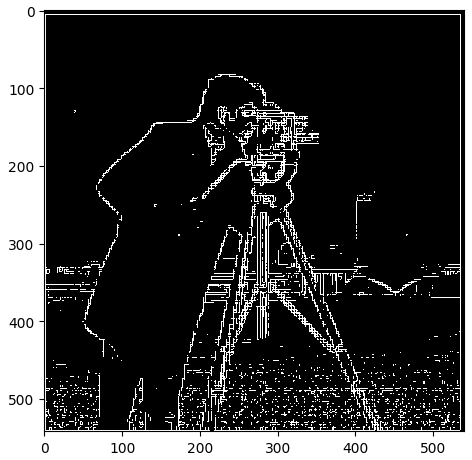
Compute and show the gradient magnitude image
Include a brief description of gradient magnitude computation
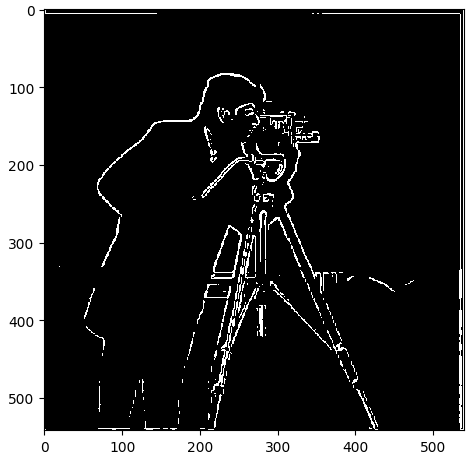
Gradient magnitude, like its name, is just a measure of how fast the intensity of the image changes from pixel to pixel. This allows us to detect edges within the image and see an “imprint” of the contents of the image. The way this is done is through taking the derivative of the pixel values (grey-scaled picture) in both the x and y direction.
To then create the binaarized version, we apply a threshold to see where the gradient changes more than a threshold limit. My threshold was in the form THRESHOLD = 1/n. The best n that I found was 8, for a threshold of ⅛, which created the image above.
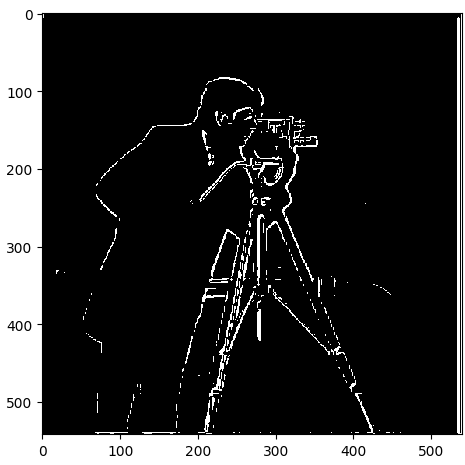
Create a blurred version of the original image by convolving with a gaussian and repeat the procedure in the previous part
What differences do you see?
We see that there exists a lot of noise in the picture in part 1.1. This noise and the number of other artifacts is drastically reduced in the convolved image in this part. It can be seen that the imprint and lines that represent the edges of the photographer are much better and cleaner and smoother.
Now we can do the same thing with a single convolution instead of two by creating a derivative of gaussian filters. Convolve the gaussian with D_x and D_y and display the resulting DoG filters as images.
Verify that you get the same result as before.
It is the same as the image before.
Original:
Sharpened
Original:
Sharpened
Blurred:
Blurred Then sharpened:
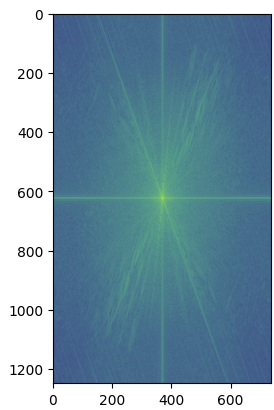
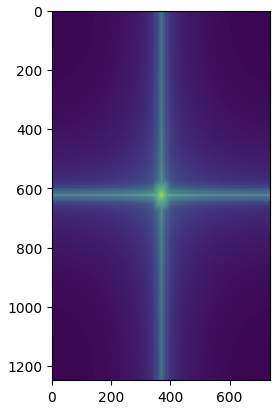
Log Transform of Nutmeg:
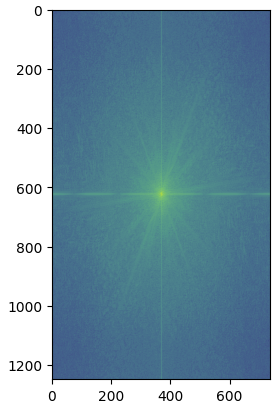
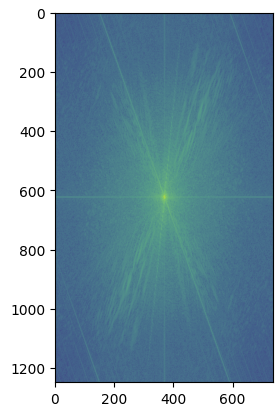
Log Transform of Derek:
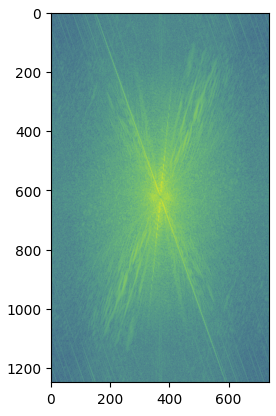
Log Transform of Filtered Image of Nutmeg:
Log Transform of Filtered Image of Derek:
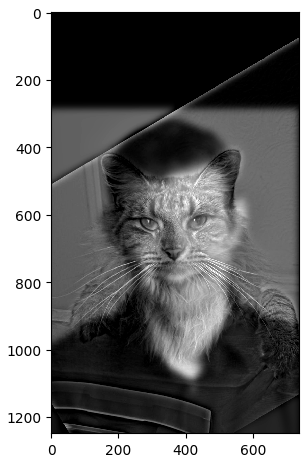
Log Transform of Hybrid Image:
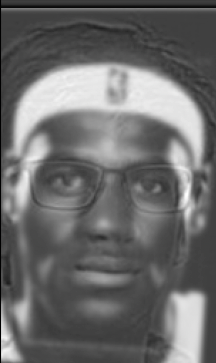
Picture of Lebron
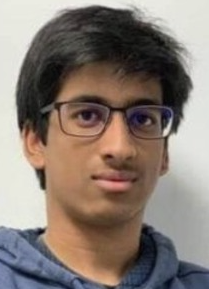
Picture of me
Picture of us
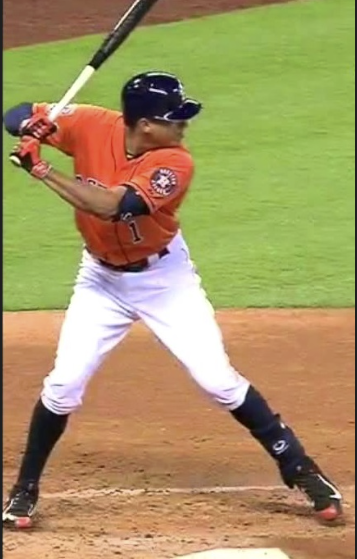
Ready Position Picture
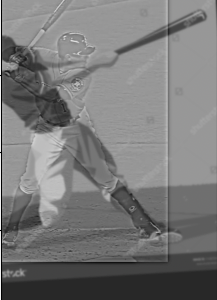
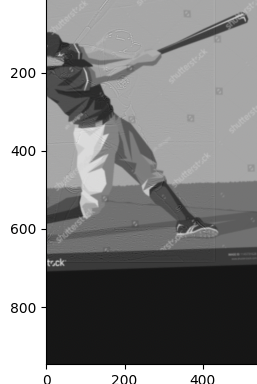
Done swinging Picture
Hybrid:
Failure:
(Bad sigma values and didn’t save properly aligned images)
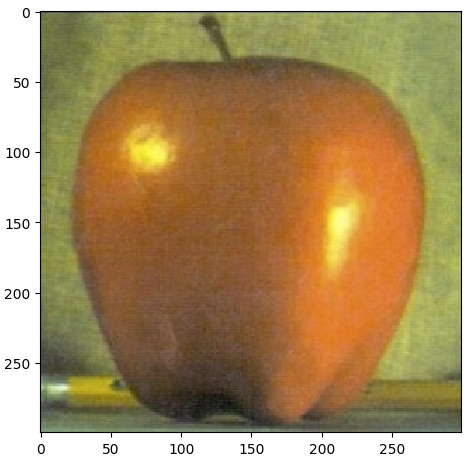
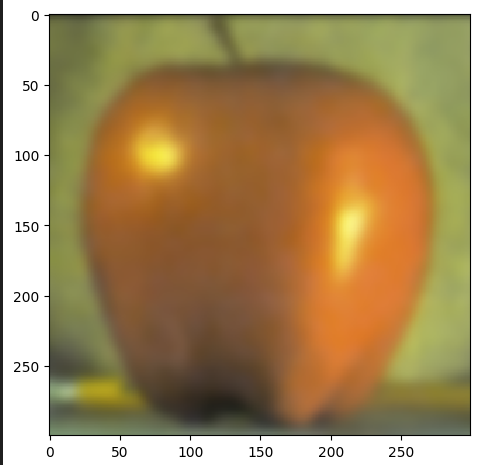
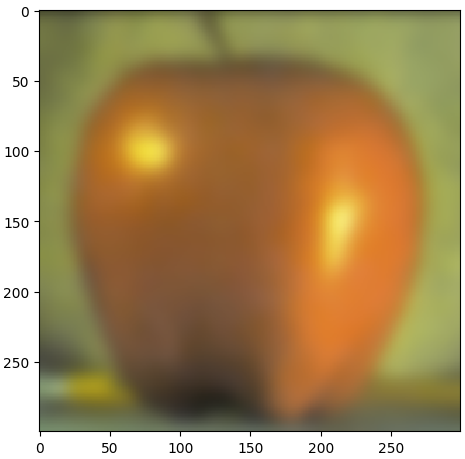
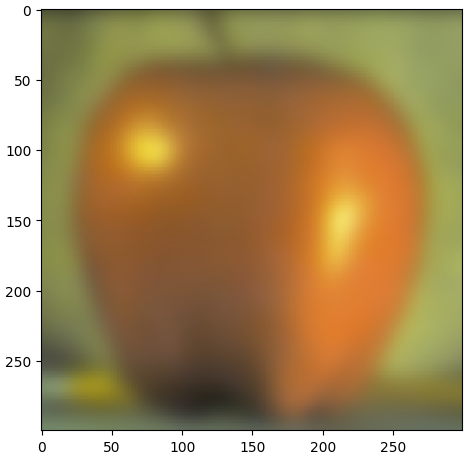
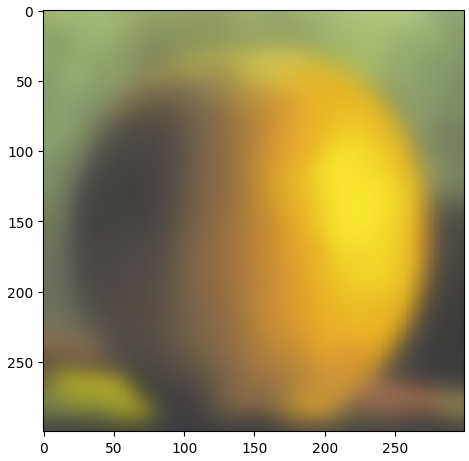
Gaussian Stack on Apple:
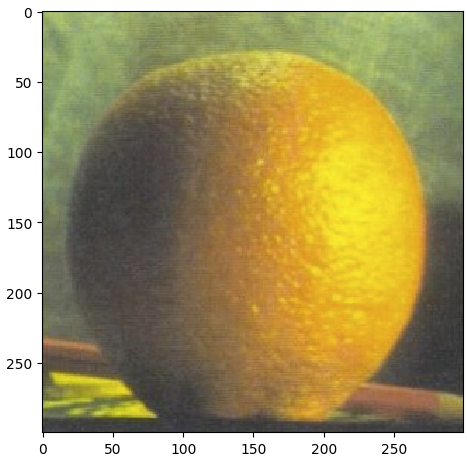
Gaussian Stack on Orange:
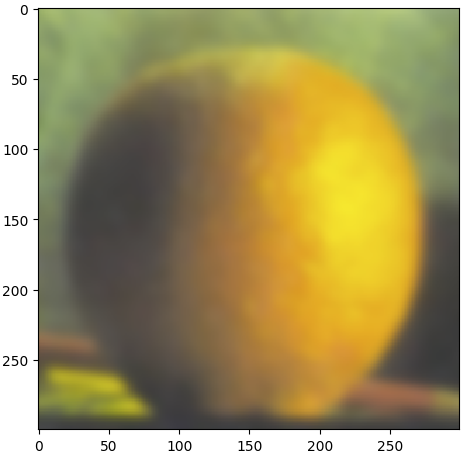
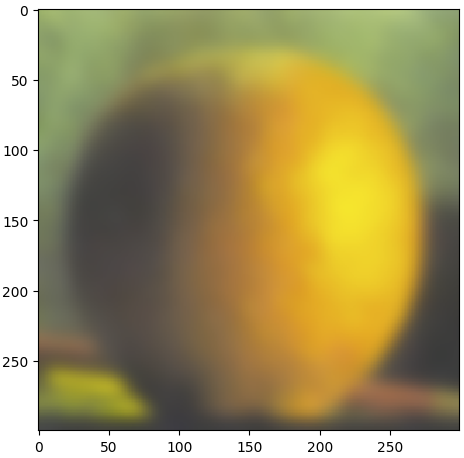
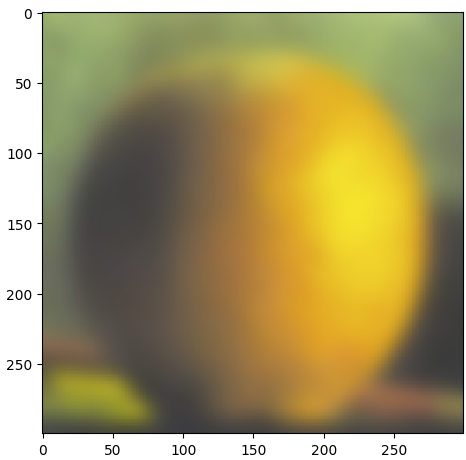
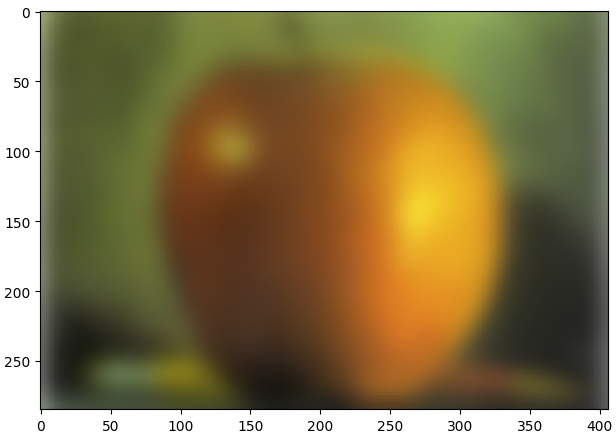
Gaussian Stack on Oraple:
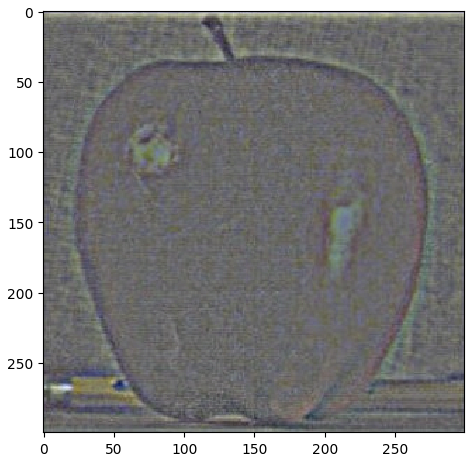
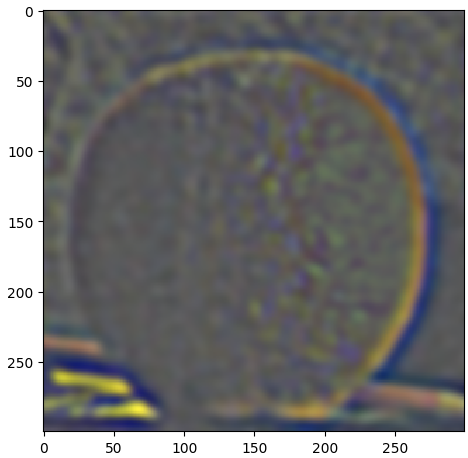
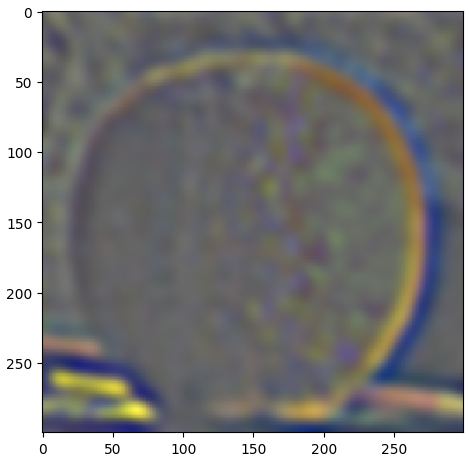
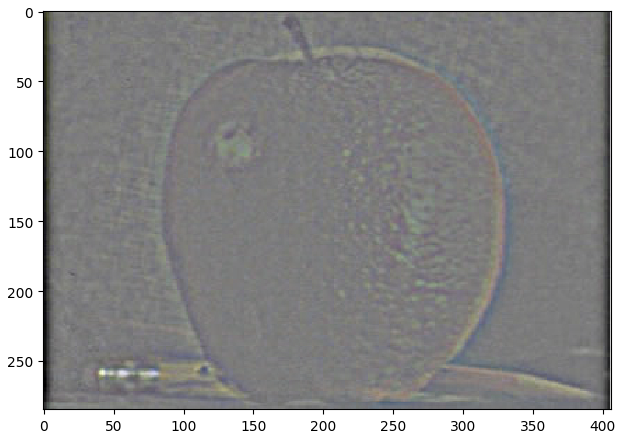
Laplacian Stack on Apple:
Laplacian Stack for orange:
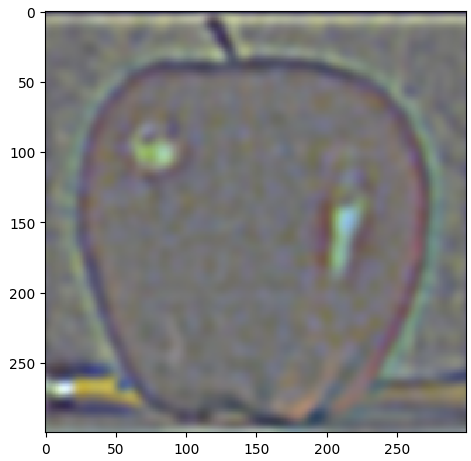
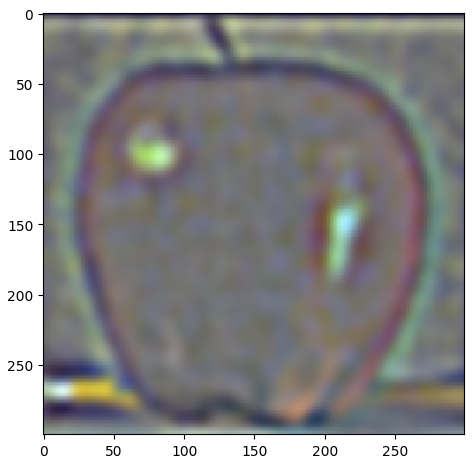
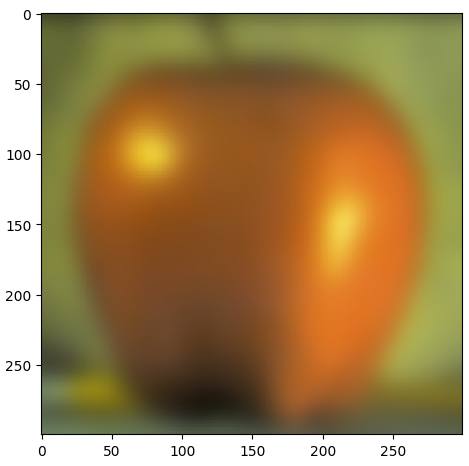
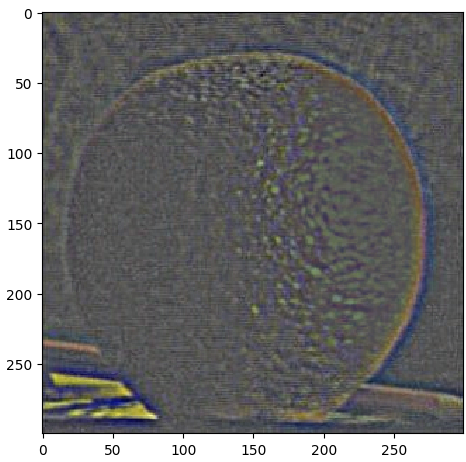
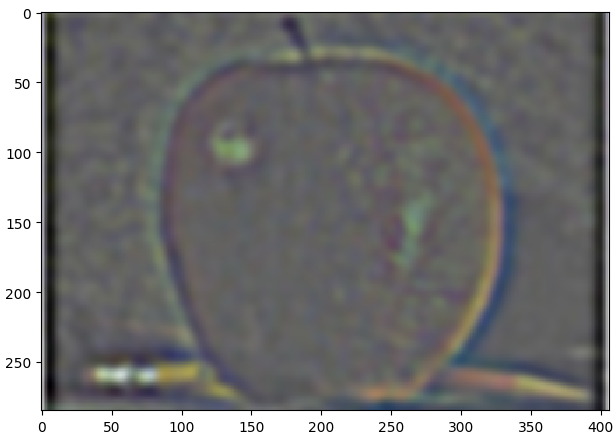
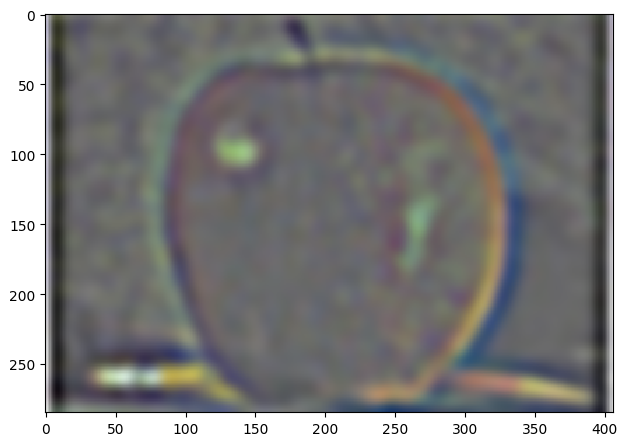
Laplacian Stack for Orple:
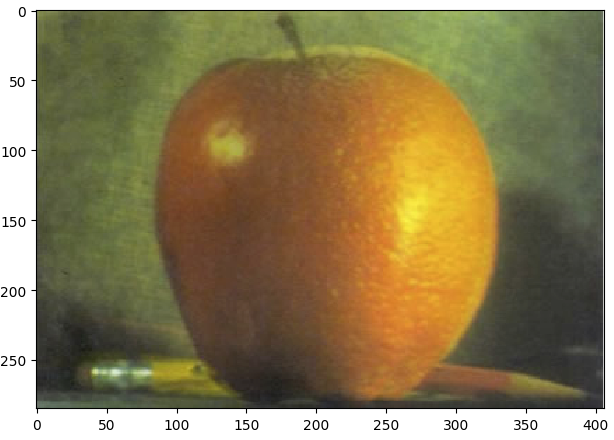
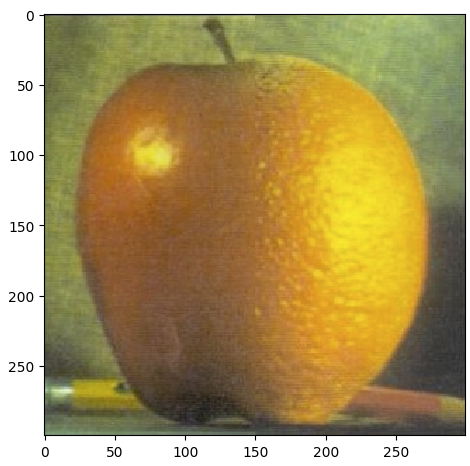
Blended Orple:
Separate Images:
Blended:
Separate:
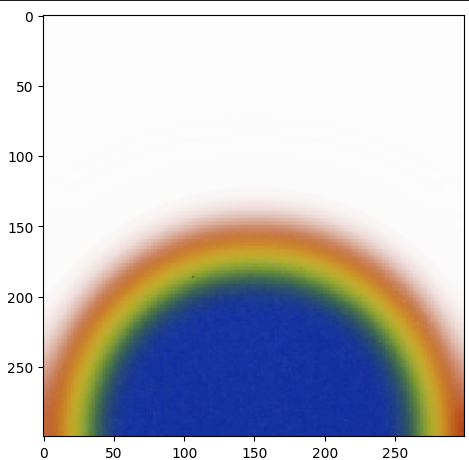
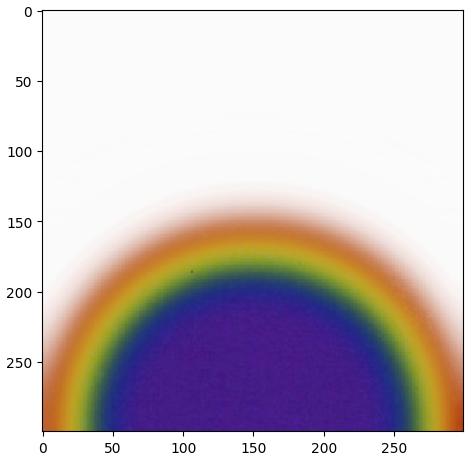
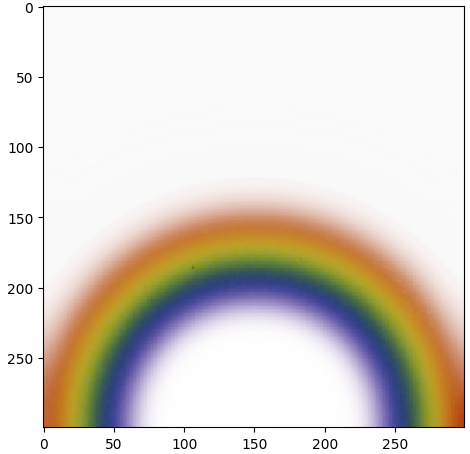
Colors of Rainbow:
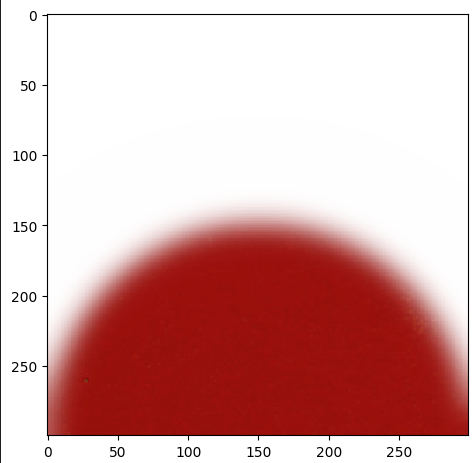
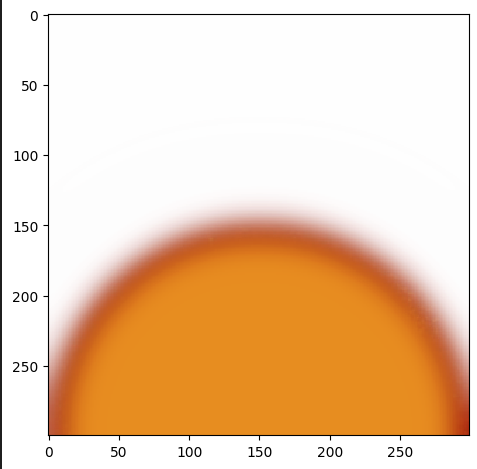
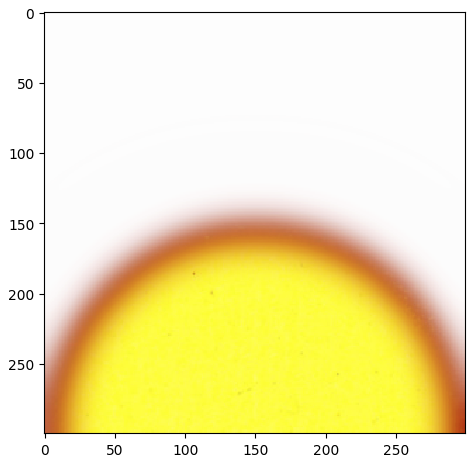
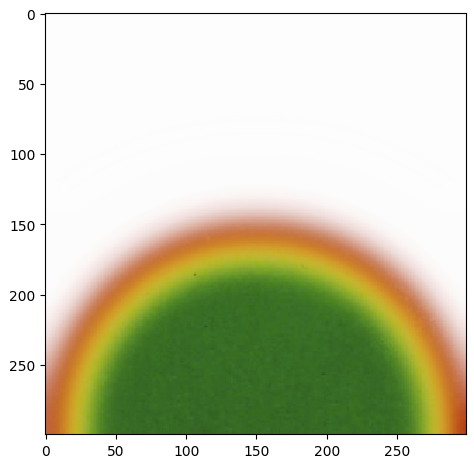
Blended (Series of blends, last one is final output):
At each step, the mask was a hemisphere with a radius that got progressively smaller.